Booking Junior Services
A simple guide for parents & guardians

1. Explore Services
After you explore our service in detail on our Service page, navigate to our Book Services page, choose the category for the service you'd like to book. Junior services are listed alongside our regular services within Bodywork, Wellness and Spa and Special Offers (series).
Select the Junior service you'd like and follow the prompts to begin booking.
.

2. Choose Your Service
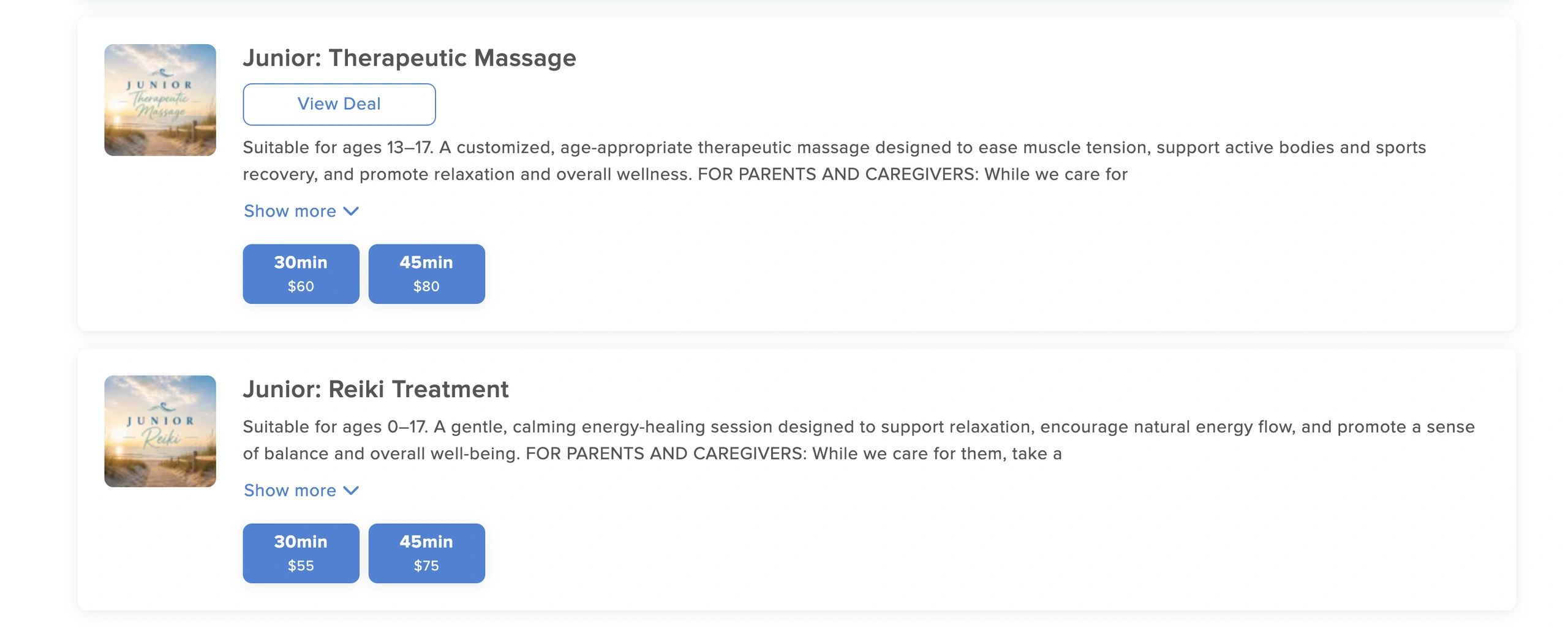
Once you arrive in MassageBook, choose the Junior service you'd like to book, then select the session duration you'd like.
3. Choose Your Add-Ons
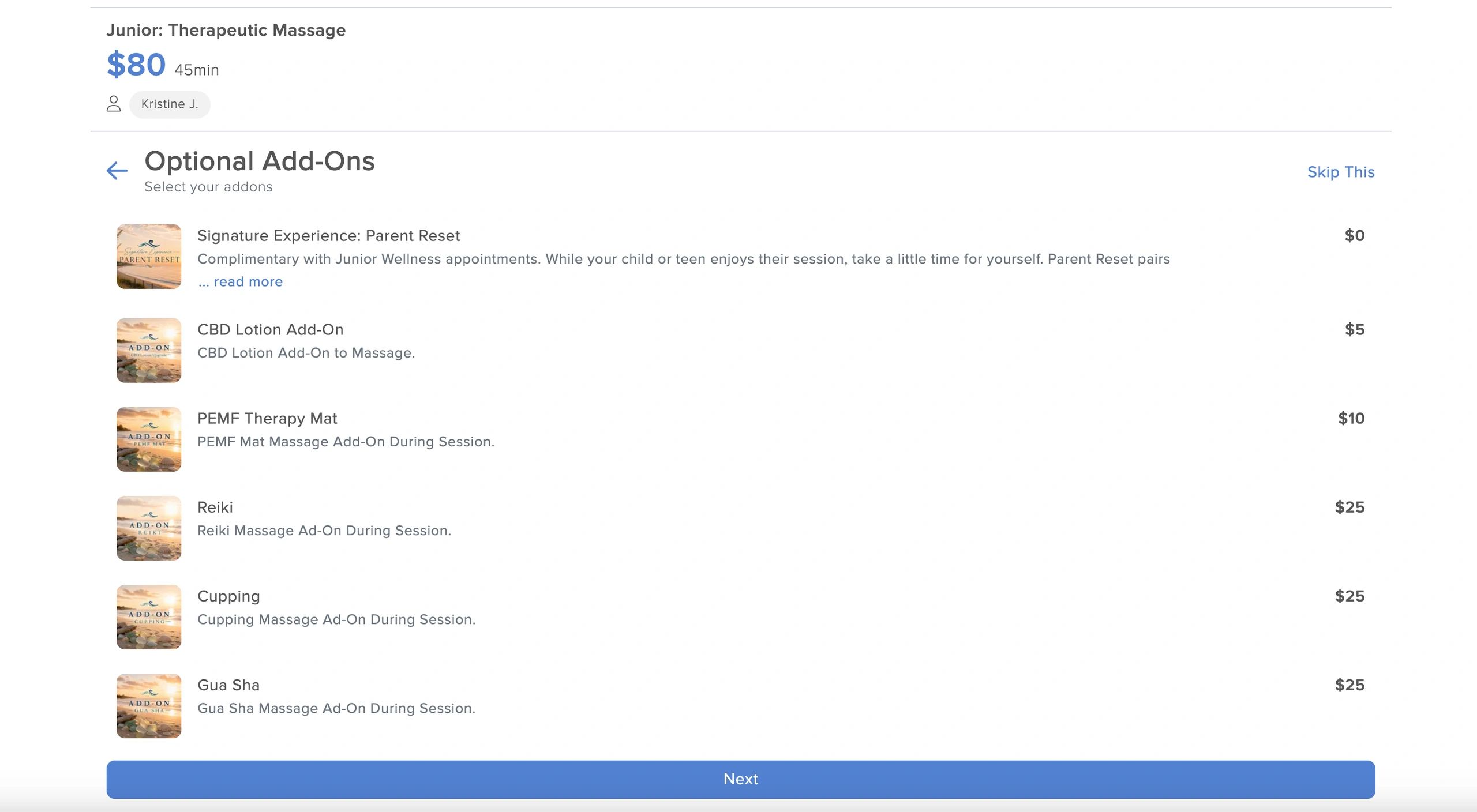
Next, you’ll have the option to select any available add-ons for the service.
For select Junior services, parents or guardians may also choose our complimentary Signature Experience: Parent Reset to enjoy while their child receives their service.
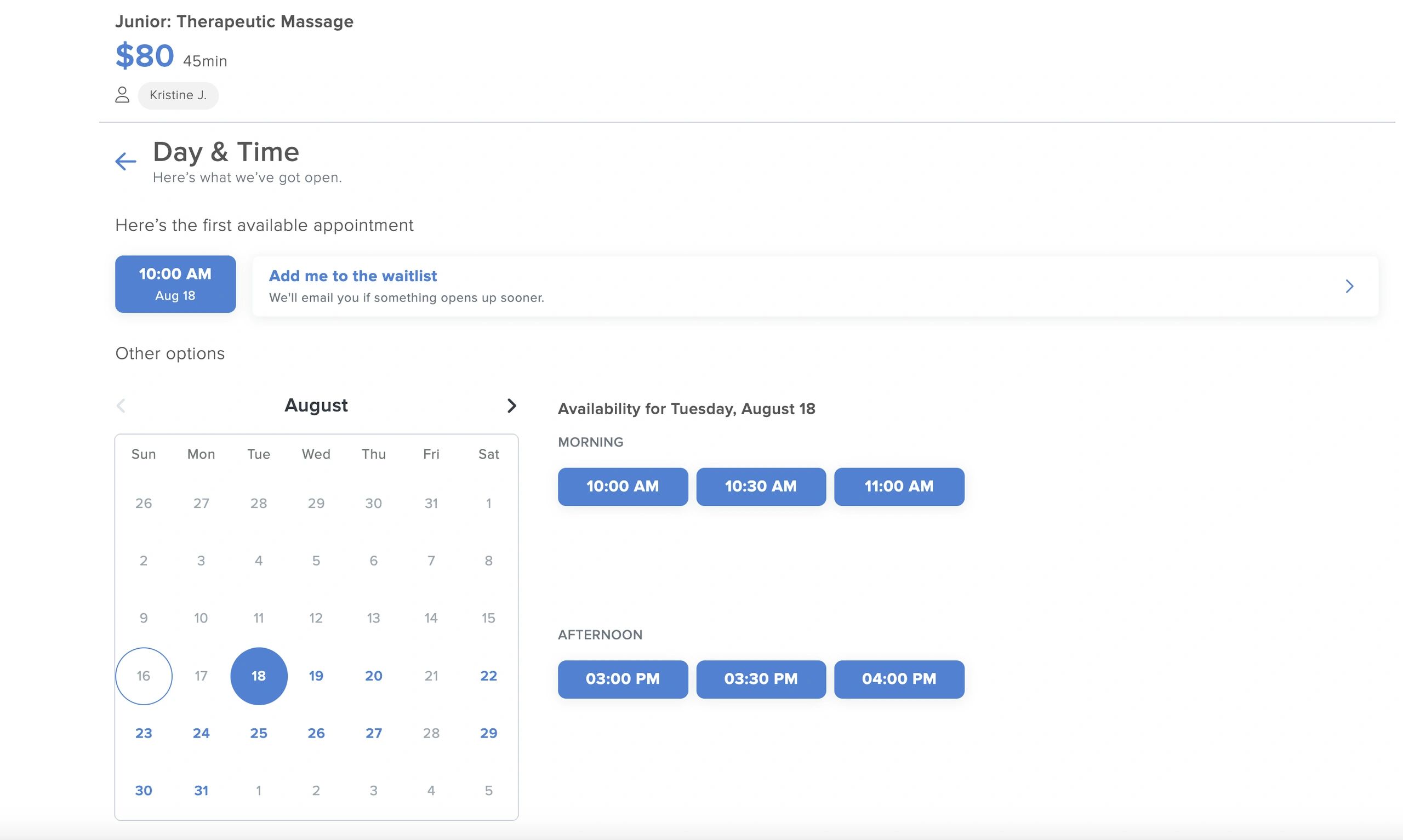
4. Choose a Date & Time
4. Choose a Date & Time.
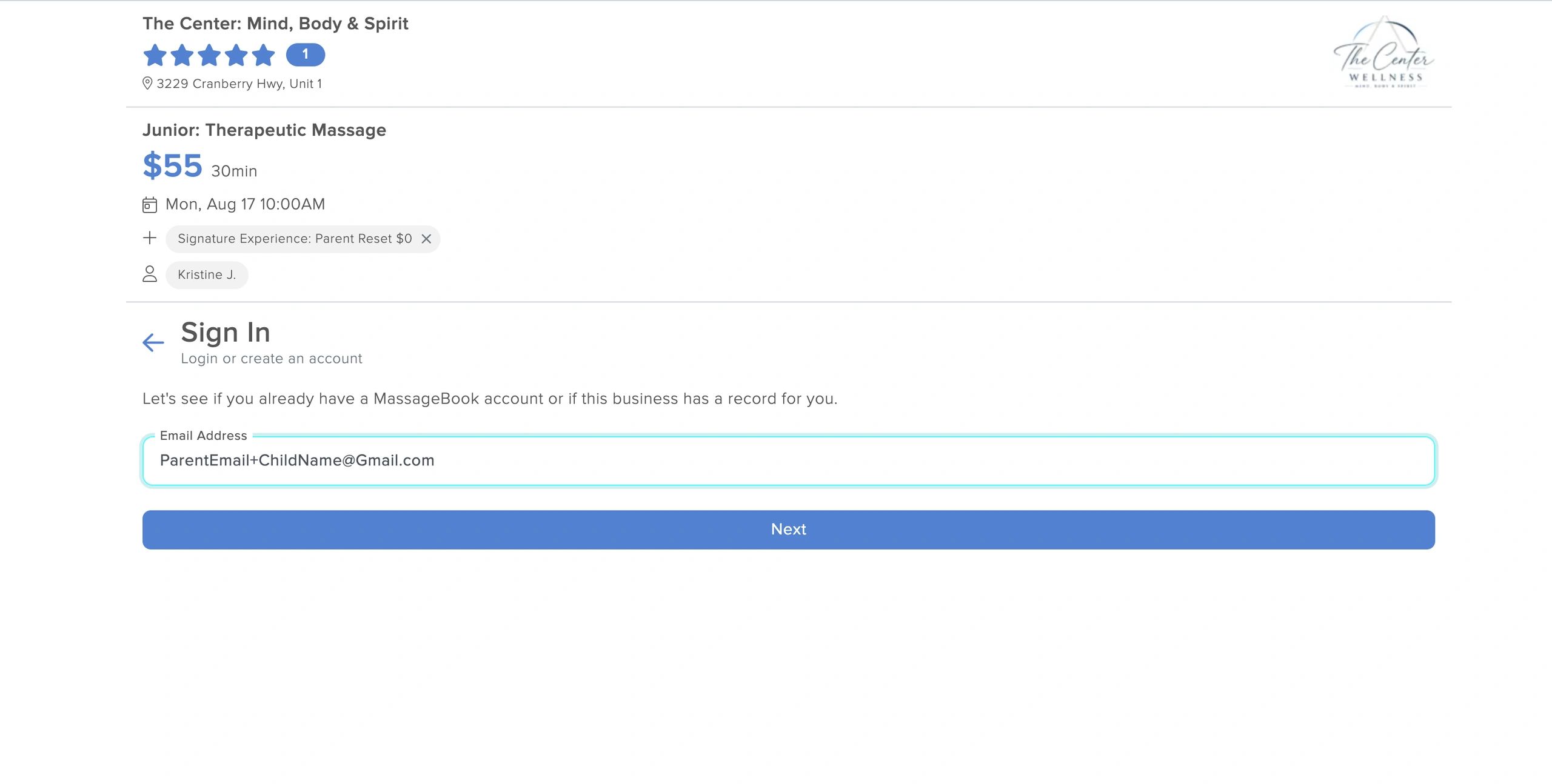
5. Enter Your Junior Client’s Email
Returning Junior Clients:
Enter the email address you previously used for your child’s MassageBook account. You’ll want to use this same address each time you book for them.
New Junior Clients:
For an older teen who has their own email address, you may use their email. Keep in mind that booking confirmations, forms and other appointment-related emails will be sent directly to them.
If you would rather receive those emails yourself, Gmail allows you to use a simple “+” variation of your existing email address. You do not need to create or set up a new Gmail account.
For example, if your email is:
simply type:
when MassageBook asks for your child’s email.
MassageBook will recognize yourname+emma@gmail.com as a separate email address for Emma’s client account, while messages sent to it will still arrive in your normal yourname@gmail.com inbox.
Important: Remember the exact + address you use for each child. You’ll use that same email to access their MassageBook account and book future appointments.
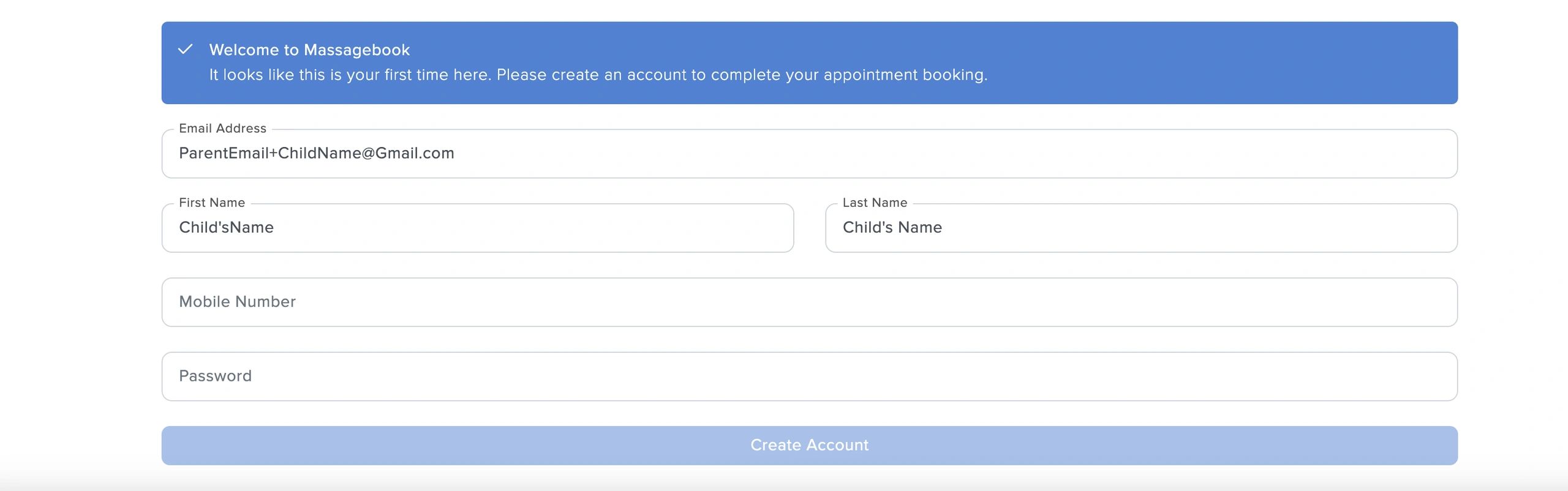
6. Create Your Junior Client’s Account
If this is your child’s first appointment, MassageBook will prompt you to create their client account. Enter the child’s information when completing the profile, including their name and date of birth.
Continue through the account setup using the email address you entered in the previous step.
Once the account is created, MassageBook can use this profile for future appointments so your child’s booking information and forms stay connected to the correct client.
Otherwise we have to use your valuable time correcting it and redoing forms when you come in for their appointment.
7. Complete the Required Forms
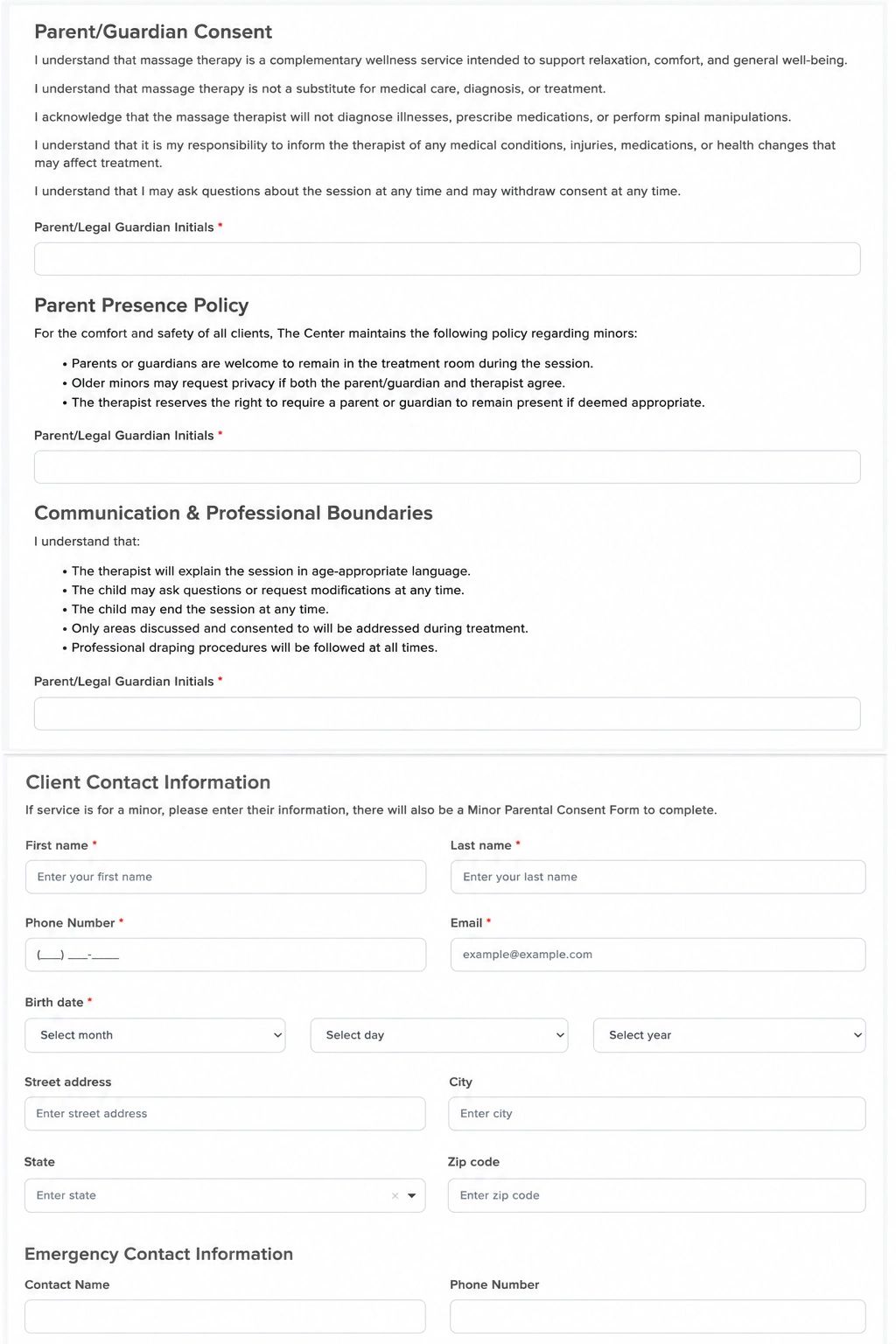
Once your booking is complete, MassageBook will automatically email the required forms to the email address associated with your child’s account.
Please complete both the General Intake Form and the Minor Parental Consent Form before the appointment. This gives your therapist time to review the information and prepare appropriately for your child’s session.
If the forms are not completed ahead of time, they will need to be completed when you arrive and may take time away from your child’s scheduled session.
8. Access & Update Your Junior Client’s Account
Once your child’s MassageBook account has been created, you can return to it anytime.
You can access MassageBook by selecting any service through our Book Services page, or you can go directly to The Center’s MassageBook page.
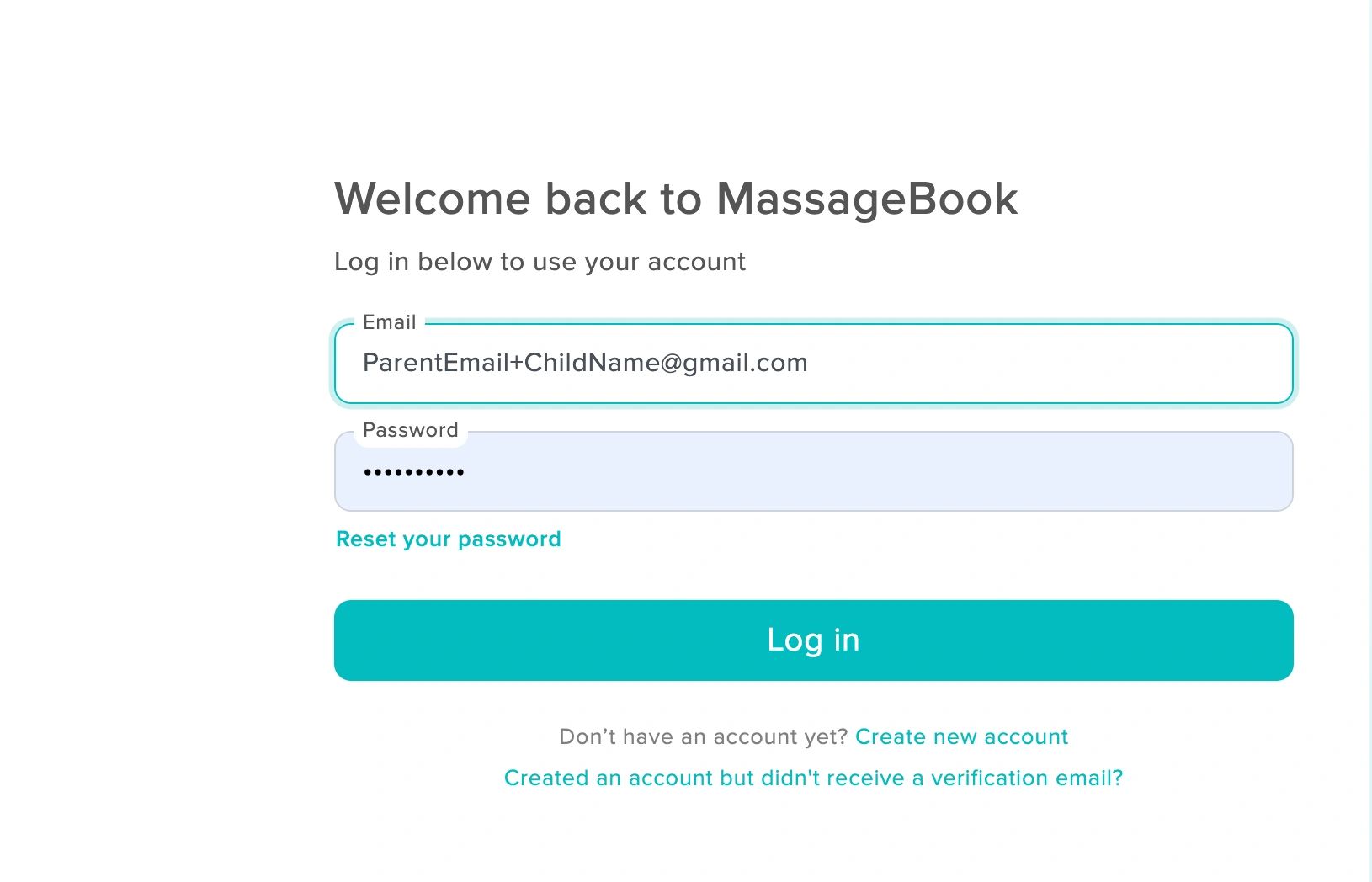
Once there, sign in using the email address associated with your child’s account. If you used a Gmail + address, be sure to enter that exact same address.
From Account Details, you can review or update information such as your child’s name, birthday, phone number, email address and password/account information.

Seasonal Spa Collections
Our curated Oceanview Autumn Collection ends November 30th to make way for our Winter Collection.
Treat yourself, or someone else, with the Oceanview Gift Certificate of your choice.